Jobs and estimates
Writing a usage licence
Using the licence builder, or starting from a template you saved.
The usage licence says how the client may use the photographs or video: where, for how long, and how many. It prints on the estimate and the invoice. Leave it empty for a job with no licence, such as a rental.
Using the licence builder
- Open the job and click Job details.
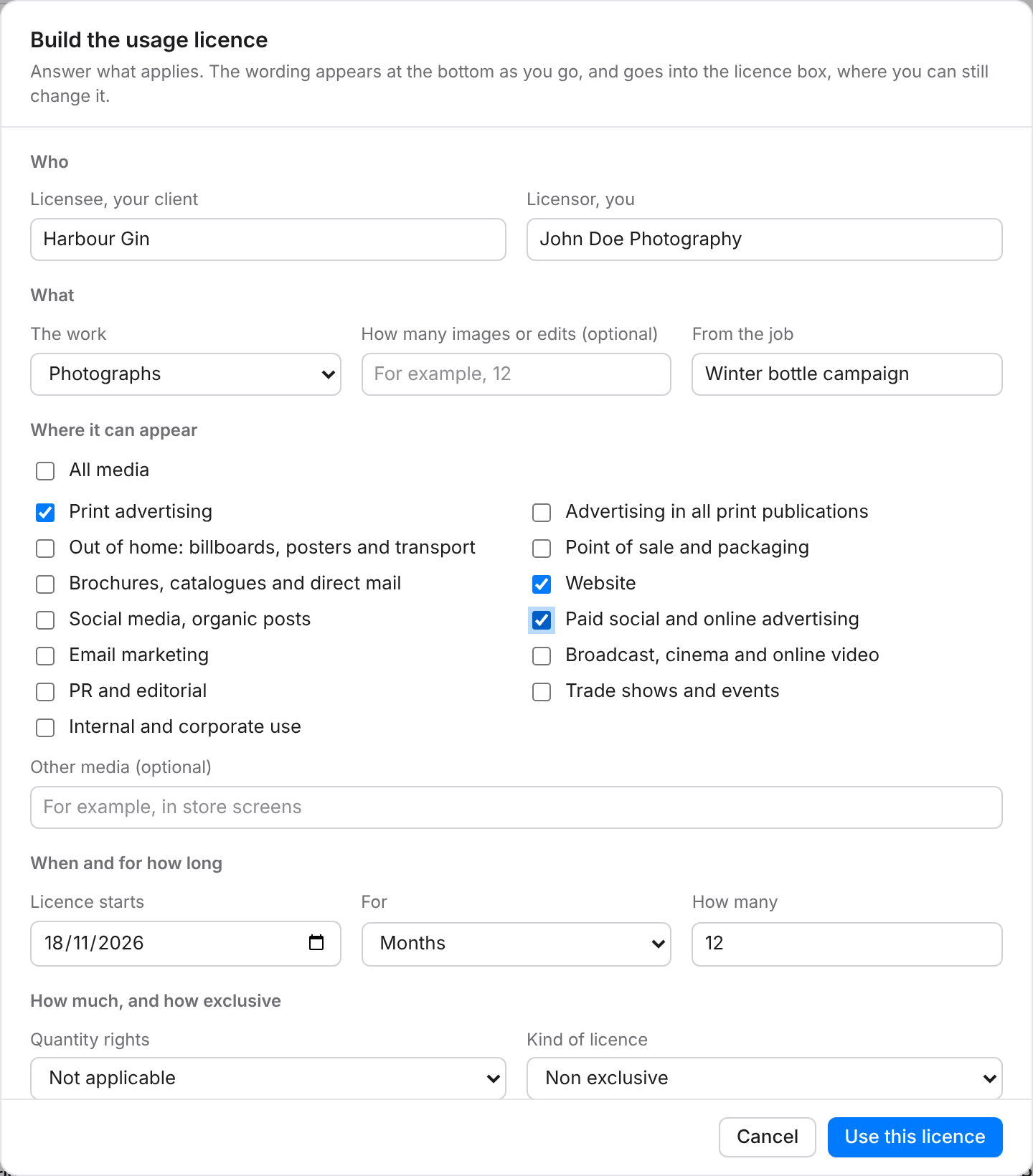
- Under the Usage licence box, click Build the licence . . .
- Check the licensee and licensor. The client, your business name, the job title and its first day are filled in for you.
- Choose the work: photographs, video, or both, and how many.
- Tick where it can appear, or tick All media.
- Set when the licence starts and how long it lasts. These also become the dates BidWrap tracks for reminders.
- Choose the quantity, the kind of licence, the territory and the copyright law.
- Add a credit line, and tick the standard terms you want.
- Check the wording at the bottom.
- Click Use this licence.
- Click Save job details.
If the box already has a licence, the builder offers Replace the licence or Add below what is there. You can still edit the wording by hand afterwards.
Good to knowThe builder gives you a starting point, not legal advice. Have your own wording checked by a lawyer or your trade association.
Starting from a template
If you have saved usage licence templates in Settings, Job details shows Start the usage licence from a template. Choose one and click Copy into this job. It replaces the licence on the job, so save any other changes first.