Jobs and estimates
Sending an estimate to a client
Emailing it from BidWrap, or sending the PDF or the link yourself.
Emailing it from BidWrap
- Open the job on the revision you want to send.
- Scroll to Email to the client, under the totals.
- In To, start typing a name or an address, and choose from the list.
- Check the Subject and the Message. They start from your own wording in Settings.
- Leave Attach the PDF ticked to attach it.
- Tick Send a copy to have a copy sent to you.
- Leave If the address is new, save it as a contact for the client ticked to add an address BidWrap does not know to the client’s contacts.
- Click Send estimate.
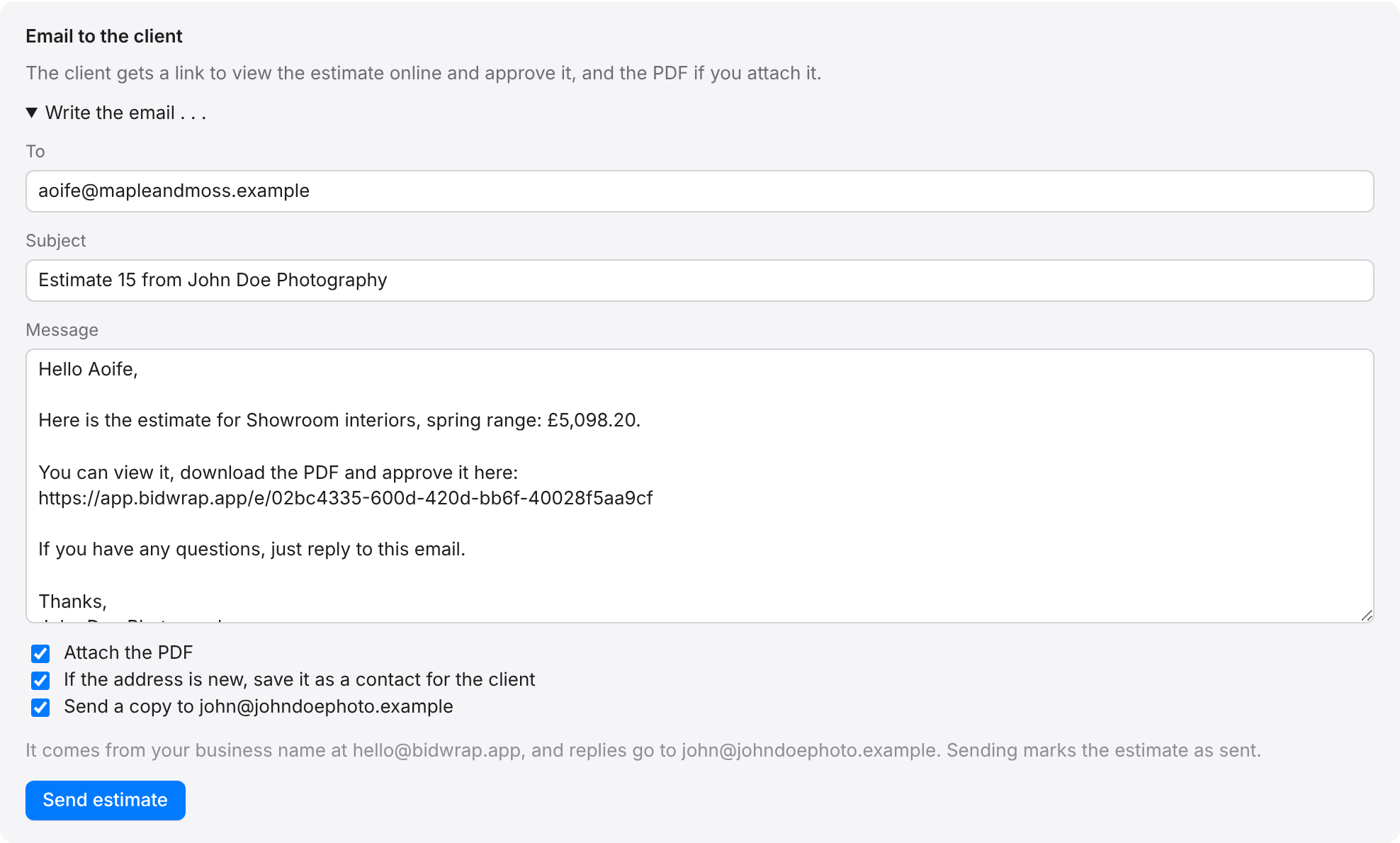
The email comes from your business name at hello@bidwrap.app, and replies go to the email address of your business name. Sending marks the estimate as sent. Every email is listed under the form, with when it went and who it went to.
The client gets a link to view the estimate online and approve it. Once they open it, the panel says when, and how many times.
Sending it yourself
Above the estimate, PDF and the More menu give you three other ways:
- PDF: opens the PDF, to download and attach to your own email.
- Client page: opens the page the client sees.
- Copy client link: copies the private link, to paste into an email or a message.
If you send it yourself, click More, then Mark as sent, so BidWrap knows it has gone.
TipA contact’s home email is suggested too, marked home, for when their work mail server turns messages away.