Getting started
Terms, conditions and licence templates
The wording printed on estimates and invoices, and usage licence templates to start from.
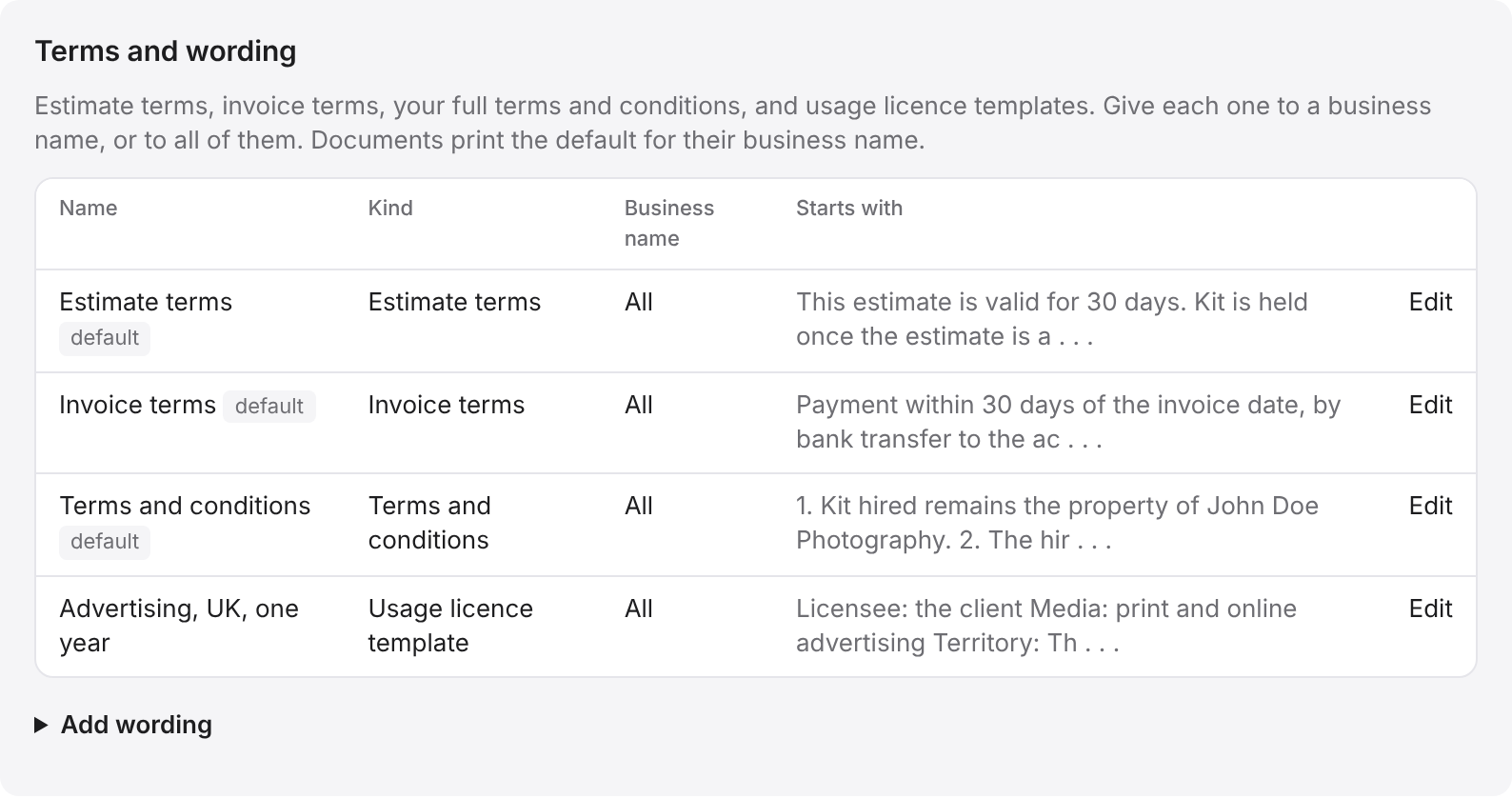
There are four kinds of wording:
- Estimate terms: printed on every estimate, under the job description.
- Invoice terms: printed on every invoice, above the bank details.
- Terms and conditions: the full conditions, printed at the end of estimates and invoices.
- Usage licence template: a starting point you copy into a job and then edit for that job.
Adding wording
- Click Settings in the side menu.
- Click Documents in the list down the side. Terms and wording is at the top.
- Click Add wording.
- Type a Name for yourself, so you can tell your wordings apart.
- Choose the Kind.
- Choose a Business name, or leave it on All business names.
- Tick Use this one by default if this is the one documents should print.
- Type or paste the Wording. Line breaks are kept, and a blank line starts a new paragraph.
- Click Add.
Which wording prints
Each document prints the default wording for its business name. When an estimate is sent or approved, or an invoice is sent, BidWrap keeps a copy of the wording it went out with, so later changes to your terms do not change documents a client already has.
Putting your current wording on a sent document
If a sent estimate or invoice went out with the wrong terms, or before you added them, you can give it your current wording:
- Open the job.
- Go to the estimate, or to the invoice.
- Click More, beside PDF, then Use the current wording.
- Click PDF to check it.
Good to knowThis changes your copy only. The client keeps the PDF they were sent, and the terms that apply are usually the ones they were given at the time. The usage licence and bank details are not changed.