Getting started
Tax rates
Adding the rates you charge, how they print, and rates made of two taxes.
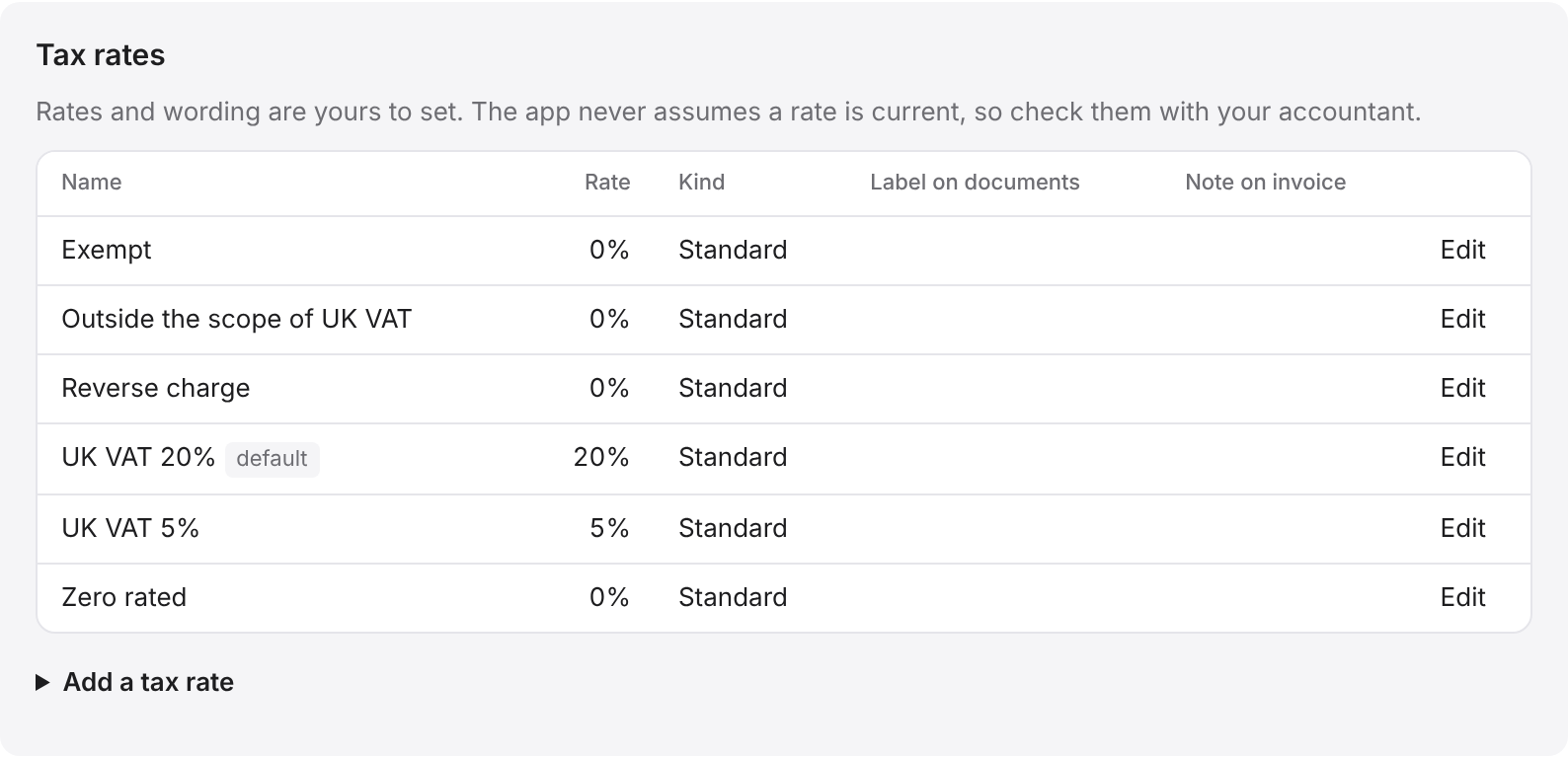
BidWrap does not set tax rates for you. You add the rates you use, and choose one for each line of an estimate or invoice. Tax is shown on every line, so you can always see what is being charged. Check with your accountant which rate applies to your work.
Adding a tax rate
- Click Settings in the side menu.
- In Business, find Tax rates.
- Click Add a tax rate.
- Type a Name you will recognise, for example UK VAT 20%.
- Type the Rate as a number, for example 20.
- Choose the Kind: Standard, Reduced, Zero rated, Exempt, Outside scope or Reverse charge.
- Type the Label on documents, which is what the client sees, for example VAT 20%.
- Click Add.
A rate made of two taxes
Some places charge two taxes together, such as GST and QST in Quebec. Type each part on its own line in Printed as separate taxes, name then rate, for example GST 5 and QST 9.975. The rate at the top then becomes their total, and each part prints on its own line.
A note on the invoice
Use Note printed on the invoice when this rate is used for wording that has to appear with a rate, such as reverse charge wording for a client abroad.
Which rate a new line gets
- If the client has a Default tax set, new lines on their jobs get that rate.
- Otherwise new lines get your default rate. To choose it, click Edit beside a rate in Settings, tick Default rate for new lines, and click Save.
- You can change the rate on any line, or choose No tax.