Clients and contacts
Adding a client
The details that print on estimates and invoices, and the client’s default tax.
- Click Clients in the side menu.
- Click Add client, top right.
- Type the Client name, as it should print on invoices.
- Choose the Type: Company or Individual.
- Choose the Country.
- Type their tax number, if they have one.
- Choose a Default tax, the rate their lines usually take.
- Tick Business customer if they are a business rather than a private person.
- Type the billing address.
- Click Add client.
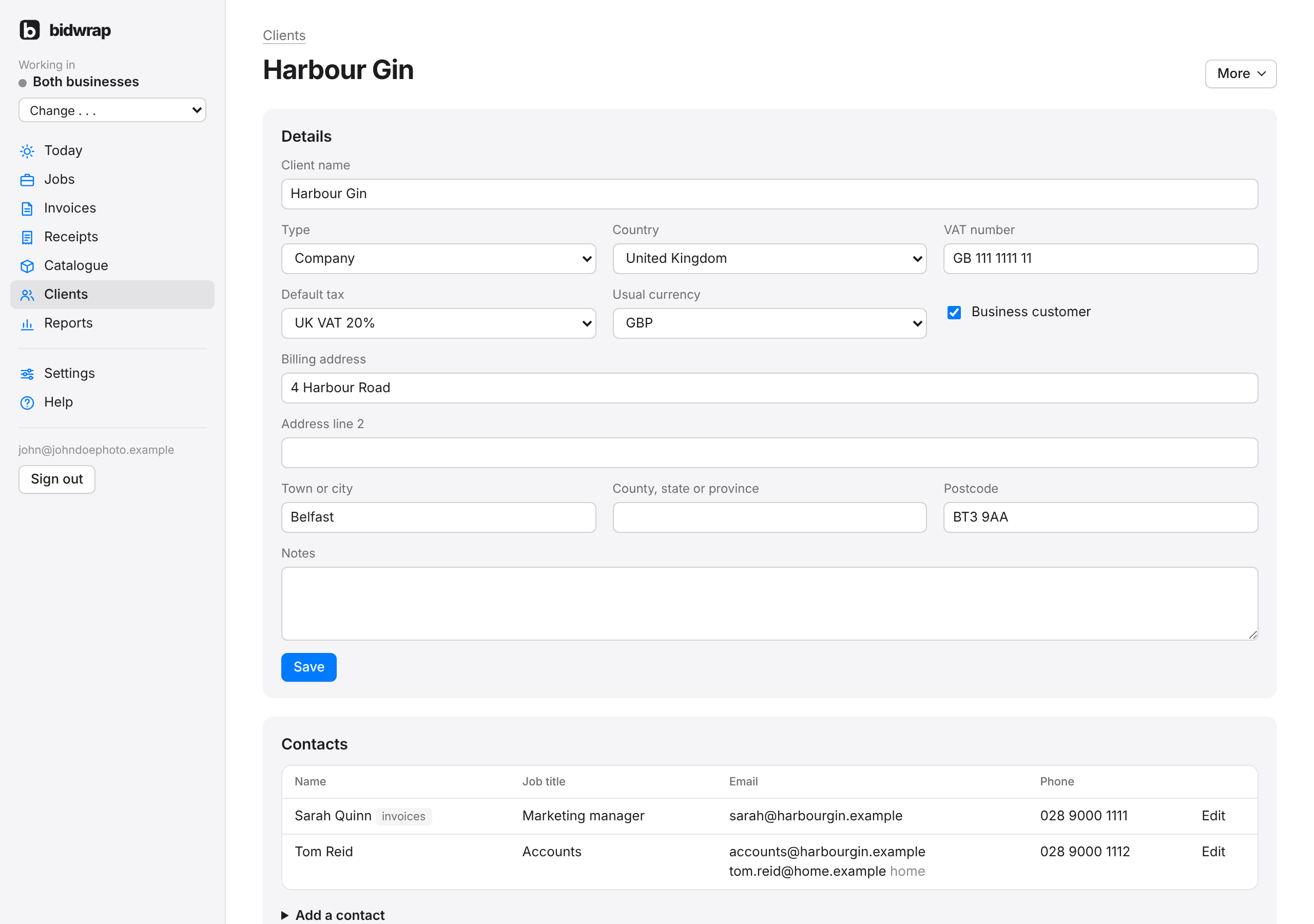
The client’s page opens, ready for their contacts. To change the details later, open the client from the list, make your changes and click Save.
Further down the client’s page, Jobs lists every job for that client, newest first. Click a job to open it. More, at the top right, has Combine with another client and Archive this client.
You can also add a client while starting a job: choose New client . . . in the Client list on the New job form.
TipSet the Default tax for clients abroad, so their jobs start with the right rate. Check with your accountant which rate applies.