Clients and contacts
Combining two listings of the same client
Merging a duplicate client, with all its contacts and jobs, into the one you keep.
If the same client is listed twice, perhaps after an import, combine them into one.
- Click Clients in the side menu.
- Open the listing you want to keep, the one with the name written the way you want it.
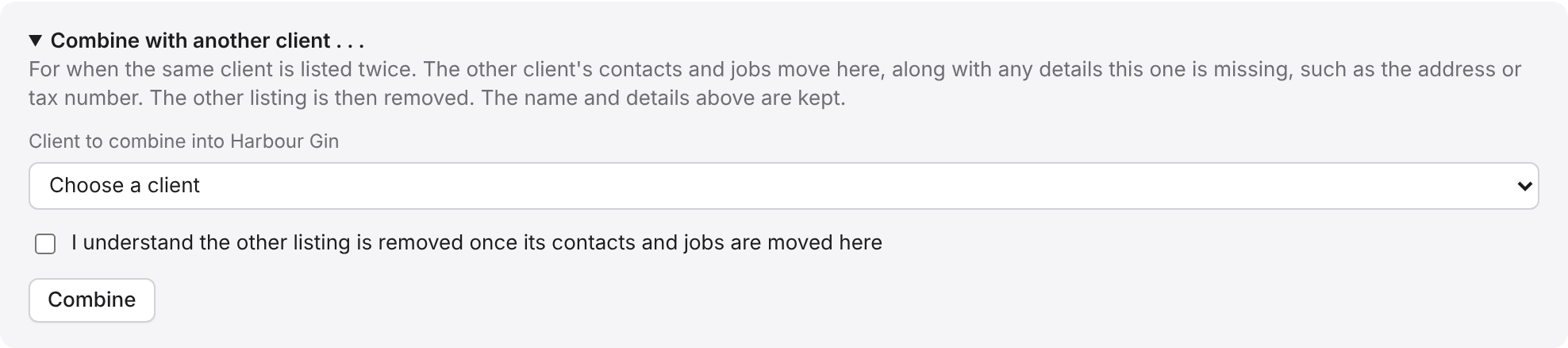
- Click More, at the top right, then Combine with another client.
- Choose the other listing. Clients with a similar name are shown at the top.
- Tick the box to confirm the other listing will be removed.
- Click Combine.
What happens
- Every contact from the other listing moves to this one.
- Every job, with its estimates and invoices, moves to this one.
- The name and details of the listing you kept stay as they are.
- Details the kept listing is missing, such as the address or tax number, are copied from the other.
- Notes from both are kept, one after the other.
- The other listing is then removed.
Good to knowThis cannot be undone. Nothing is lost, because everything is moved before the other listing is removed.
TipIf the same person was a contact on both listings, they now show twice. Delete the extra copy from its Edit link.