Getting started
Bank accounts on invoices
Adding the accounts clients pay into, so the right one prints on each invoice.
You can add more than one bank account, for example one for pounds and one for euros. BidWrap suggests the best one for each invoice, from its currency, where the client is, and the business name.
Adding a bank account
- Click Settings in the side menu.
- Click Documents in the list down the side, and find Bank accounts.
- Click Add a bank account.
- Type a Name for yourself, for example UK Funds.
- Choose the Currency it receives.
- Choose Use for clients: Anywhere, In my home country, or Outside my home country.
- Choose a Business name, or leave it on All business names.
- Type the Details printed on the invoice: account name, sort code and account number, IBAN, BIC or SWIFT, and the bank name and address, as needed.
- Click Add.
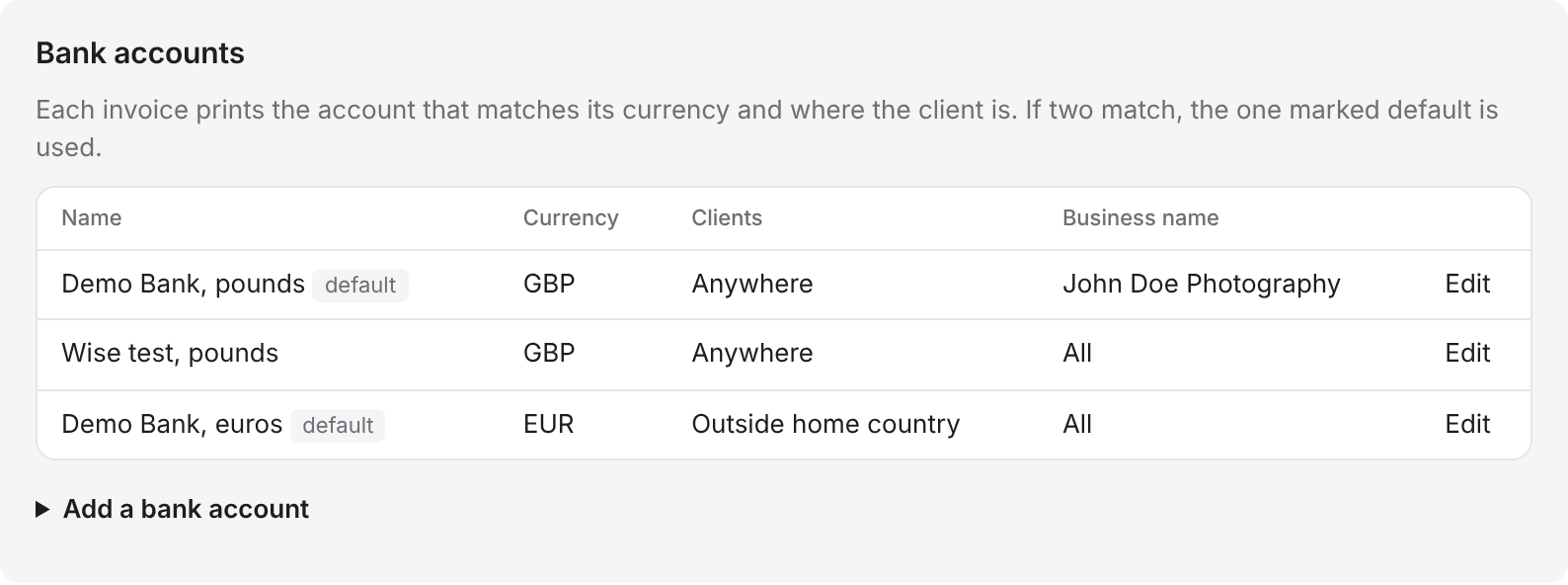
To make one account the first choice for its currency, click Edit beside it, tick Use this one by default for its currency, and click Save. Untick In use to stop an old account being offered.
Choosing the account on an invoice
On each invoice, the Bank account and what prints panel has a Bank account printed box with the suggested account already chosen and marked suggested. Pick another one if you need to, then click Save these choices.
When the default is not the one suggested
- An account set to a particular business name comes first for that business’s jobs, ahead of a default set to All business names.
- An account set to Outside my home country is suggested for clients abroad.
- Jobs in another currency use the default for that currency.
- Invoices already made keep the account they have. Change it in Bank account printed on the invoice.