Kit, catalogue and rentals
Adding items to your catalogue
Kit, studio days, fees, crew and packages: what each box on a catalogue item means.
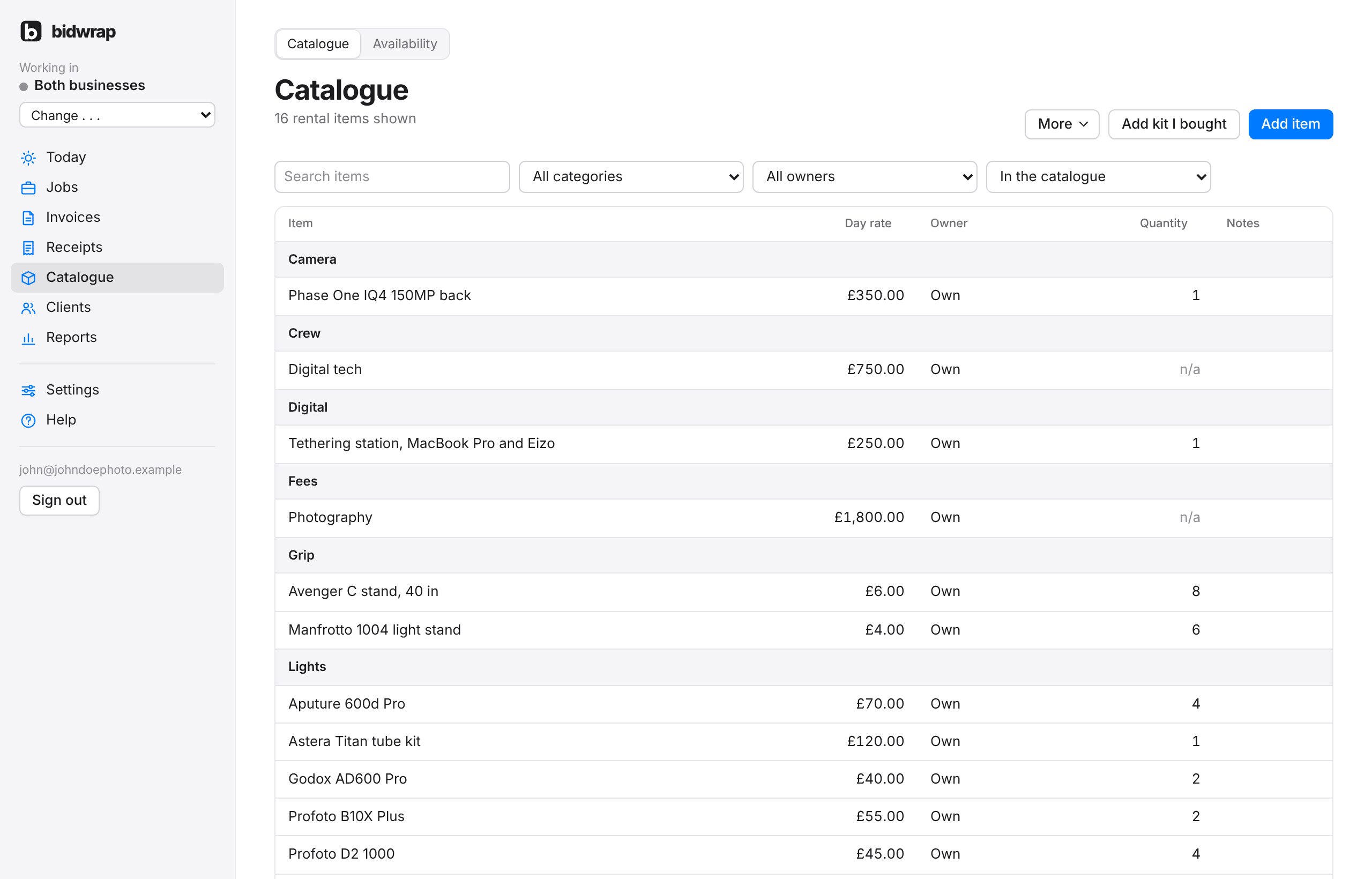
Anything you put on estimates often belongs in the catalogue: kit, studio days, your day rate, crew, expenses and packages. Once it is there, you add it to an estimate by typing a few letters of its name.
- Click Catalogue in the side menu.
- Click Add item, top right.
- Type the Name, as clients will see it on the estimate.
- Choose or type a Category, for example Lights.
- Choose the Kind, and the Heading on estimates. See below.
- Choose the Pricing: Per day, or Fixed price, no days.
- Type the Rate, or leave it empty to price it on each job.
- Choose the Owner: Own, or Cross hire from someone else.
- Click Add item.
Kind and heading
The Kind says what the item is: rental gear, production item, studio, fee, usage, crew or talent, expense, package, or charge or discount. Kit, production items and studio days are the ones whose days are set from the job dates.
Leave Heading on estimates on Goes with the kind, and the item goes under the usual heading for its kind, kit under kit hire, crew under crew and so on. Choose a heading to put it somewhere else.
Cross hire
For kit you hire in, choose Cross hire from someone else and fill in the Cross hire supplier, What you pay the supplier and a Markup. See Cross hire and your margin.
How many you have
For kit with no units in the register, type the Quantity owned. Once you add units, BidWrap counts those instead, and the box goes. The cross hire supplier, cost and markup boxes show only when Owner is Cross hire.
Finding and removing items
Search, or filter by category and owner, at the top of the catalogue. To remove an item, open it, click More, then Remove from the catalogue. Past jobs keep it, and you can bring it back from Removed items in the filter.