Kit, catalogue and rentals
Scanning kit out and back in
Checking kit against the job’s list with a phone camera, and the pick list.
Scanning out
- Open the job on your phone.
- Tap Scan kit, top right.
- Tap Going out.
- Tap Start the camera, and allow the camera if asked.
- Point the camera at each label in turn.
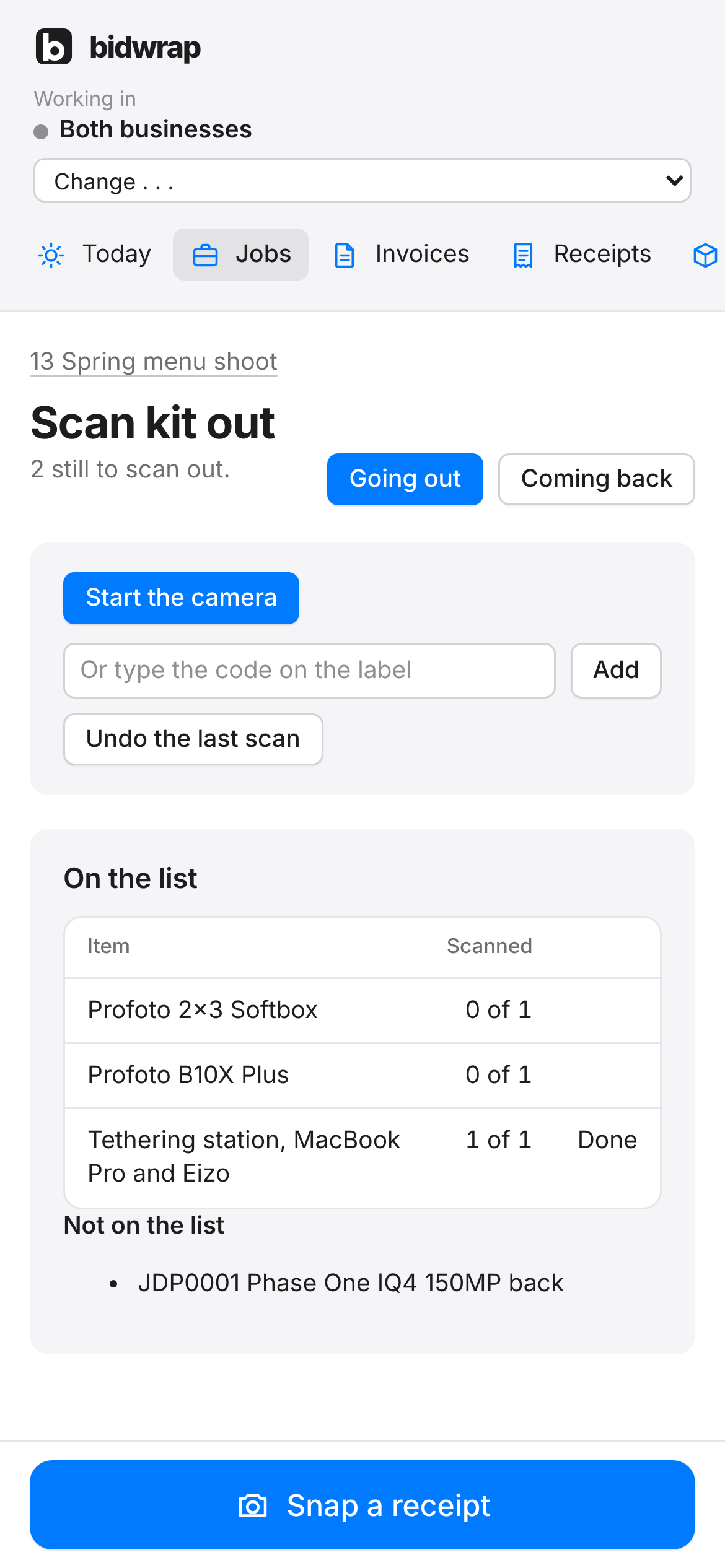
On the list shows each item on the job, and how many have been scanned. Kit with no labels yet says to check it by eye. Anything you scan that is not on the job is listed under Not on the list.
Scanning back in
- Open the job’s Scan kit page.
- Tap Coming back.
- Scan each label.
The page shows how many pieces are still out on the job.
If the camera will not start
Type the code into the box under the camera and tap Add. If the camera was blocked, allow it for this site in your browser settings. To take back a scan made by mistake, tap Undo the last scan.
The pick list
Click Pick list at the top of a job for a PDF of the kit to pack, grouped by heading. It comes from the final invoice if there is one, otherwise the approved estimate, otherwise the newest open revision.
Pick list and Scan kit show while the job is still to come or under way. Once the last day has passed, or the job is invoiced, paid, lost or cancelled, they are hidden. The job’s Scan kit page itself still works from a link you saved.