Receipts and your accountant
Checking and confirming a receipt
Correcting what was read, linking it to a job, and confirming it so it counts.
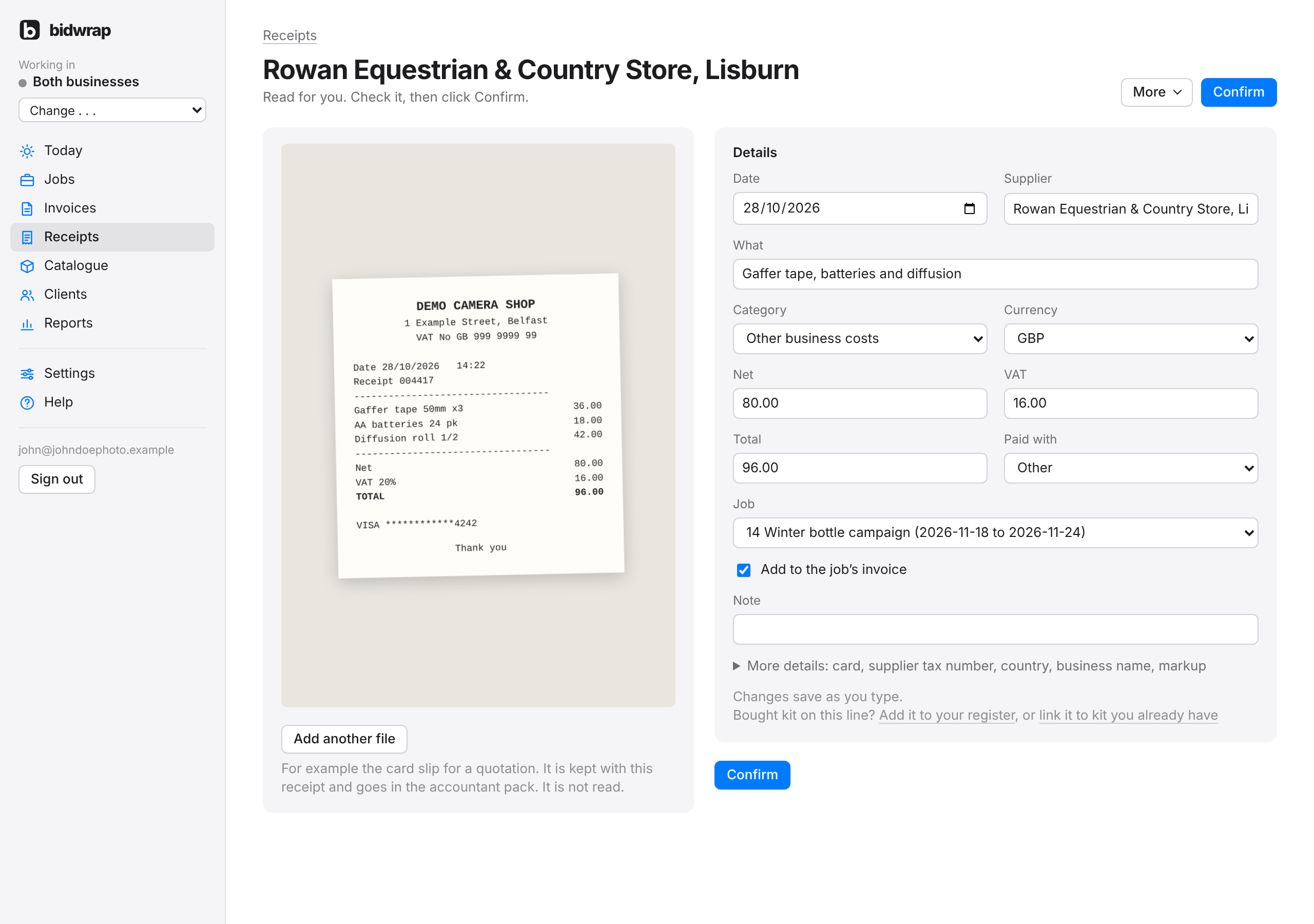
A receipt only counts towards your figures and the accountant pack once it is confirmed. The receipt page shows the photo or PDF beside a form for each line.
- Click Receipts in the side menu.
- Click Check the next one, or click a receipt in the list.
- Compare it with the receipt: date, supplier, what it was, category, currency, net, tax, total and Paid with.
- Choose the Job if it was for one. Jobs around the date of the receipt are at the top. Every other job is further down, under Older jobs.
- Click More details for the card ending, the supplier’s tax number and country, the business name and a markup, if any need changing.
- Click Confirm.
Saving and confirming
- Changes save as you type. Under the form it says Changes saved once they are in.
- Confirm confirms the whole receipt, every line, after saving anything still being typed.
- The next receipt still to check then opens, so you can work through a pile in order.
- You can still change a confirmed receipt. Changes save the same way.
Categories filled in for you
- The reader suggests a category for each line. It knows your own categories too, such as Farm, and uses them where a purchase plainly belongs there.
- When your last confirmed receipts from a supplier all had the same category, a new receipt from that supplier with a single line starts in that category.
- When you confirm a receipt, other receipts from the same supplier still waiting to be checked, with a single line, take the same category. Fix the first one in a pile, and the rest follow.
These are suggestions: check the category on every receipt before you confirm it.
Other things on the receipt
- More, beside Confirm, has Add a line, for a receipt with more than one kind of cost, Read it again, which reads the receipt again from scratch, and Delete this receipt.
- Add another file, under the receipt picture: keeps a second photo or PDF with the receipt, such as the card slip for a quotation. It goes in the accountant pack too, and is not read.
- Remove line: on a receipt with more than one line, for a line added by mistake.
Confirming many at once
When lines are waiting, the Receipts page offers Confirm the ones that check out. It confirms each receipt that adds up, and tells you why the others still need you. A digital receipt that adds up when it is first read is confirmed automatically.
Receipts in another currency
Choose the currency the receipt is in. BidWrap finds the exchange rate for the date, shown in the box for your home currency. You can type your own rate, for example the one on your card statement.
Already claimed
When you add the price of an old receipt to kit you already have, you can tick Already claimed with my accountant, so leave it out of the accountant pack. The box is ticked for you when the receipt is more than a year old. The receipt is then tagged already claimed. Click Include it again on the receipt to undo that.