Receipts and your accountant
Adding receipts
Taking a photo, or uploading photos and PDF invoices, one at a time or in a batch.
- Click Receipts in the side menu.
- On a phone, tap Take a photo and photograph the receipt. Tap Take another for the next one.
- On a computer, click Choose files and pick photos or PDF invoices. You can choose several at once.
Each receipt is read for you, then waits for you to check it. Lines waiting are marked To check in the list.
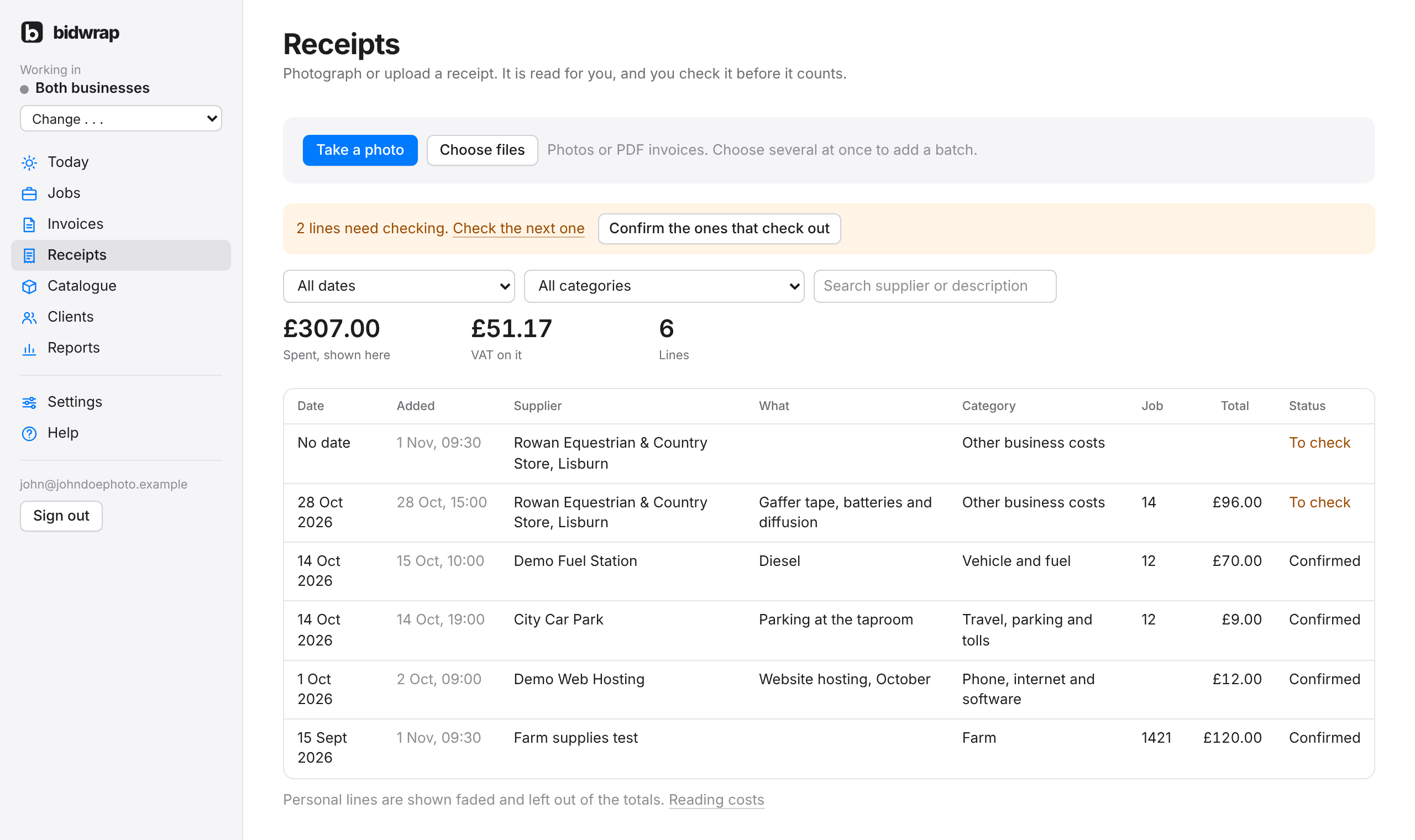
The list
Filter the list by date and category, or search by supplier or description. The list changes as you choose and type. The totals at the top are for what is shown. Lines marked Personal, not a business cost are shown faded and left out of the totals.
The Added column shows when each receipt went in. To see a batch you scanned today, click the Added heading so the newest are at the top. Click any heading to sort by it.
TipIf you upload the same receipt twice, the new file replaces the earlier copy, and your lines, job links and edits are kept.